How to host an online workshop, step by step
Only about 40% of people who register for a live online event actually show up, according to Wistia's 2026 webinar benchmarks. That one number should shape your entire workshop plan. You need twice as many signups as the seats you want filled, automatic reminders that nudge people on time, and a replay waiting for everyone who missed it. You can build the event page, registration, and email reminders on a free Lockers plan ($0) as you go; paid tickets start on Basic ($7/mo) and built-in Live rooms start on Pro ($67/mo).
 By Ryan Scott, founder of LockersUpdated November 26, 202611 min read
Pick one outcome and cap it at 90 minutes
Half-day workshops take weeks to build and drain everyone on the call. Attendees don't judge a workshop by how many slides you covered. They judge it by what they can actually do when the call ends. Anchor everything to one concrete outcome, like "set prices for three services." That gives every minute a job and gives attendees a one-line pitch they can repeat to a friend.
Goldcast's 2026 B2B Webinar Benchmark Report (26,190 webinars across 522 organizations) found a median length of 60 minutes, while Demio's 2026 guide puts educational workshops at 45 to 60 minutes. Because a real workshop adds hands-on practice to the teaching, 60 to 90 minutes is the sweet spot for your first run.
That hands-on block is what separates a workshop from a webinar. A webinar talks at people and saves ten minutes for Q&A. A workshop puts attendees to work on their own material for at least a third of the session while you coach them live. Decide how you want them to interact before picking your room: in a Lockers Live room, attendees watch and type in chat; on Zoom or Google Meet, they can unmute and come on camera.
Run the room on a timed 90-minute schedule
Freezing up or running long are the two biggest fears before a first workshop. A block-by-block schedule solves both because you only ever need to focus on the next ten minutes. Here's a proven 90-minute template for a pricing workshop:
Grab the blank version from our event run-of-show template and keep it on a second screen. Time your Teach block once in rehearsal. Every extra minute you spend talking steals time from the practice block people came for.
| Time | Block | What happens |
|---|---|---|
| 0:00 to 0:05 | Welcome | State the one outcome, note that you're recording, and ask everyone to type in chat what they want to fix today. |
| 0:05 to 0:25 | Teach | Walk through the method in three or four steps with one worked example. |
| 0:25 to 0:50 | Do | Attendees apply the method to their own work using your worksheet. |
| 0:50 to 1:10 | Share & coach | Pull two or three submissions from chat and coach them live. |
| 1:10 to 1:20 | Q&A | Answer the top questions your co-host collected from chat. |
| 1:20 to 1:30 | Next step | Give one action for this week, explain where the replay lives, and introduce your next offer. |
Build one event page for the whole workshop
Many first workshops stall because hosts think they need a landing page builder, a signup form, an email tool, and a checkout app before announcing a date. In Lockers, one event page handles the description, local time conversion, registration button, meeting link or Live room, email reminders, and (on Pro) the replay. Creating an event is a protected action, so keep your authenticator app nearby.
Open Calendar and click New event
Enter a title up to 140 characters. Put the outcome right in the title, because it's the first thing every visitor reads.
Pick how it happens
Under How it happens, select External link and paste your Zoom, Google Meet, or other https link (works on every plan). On Pro, you can select Live room instead.
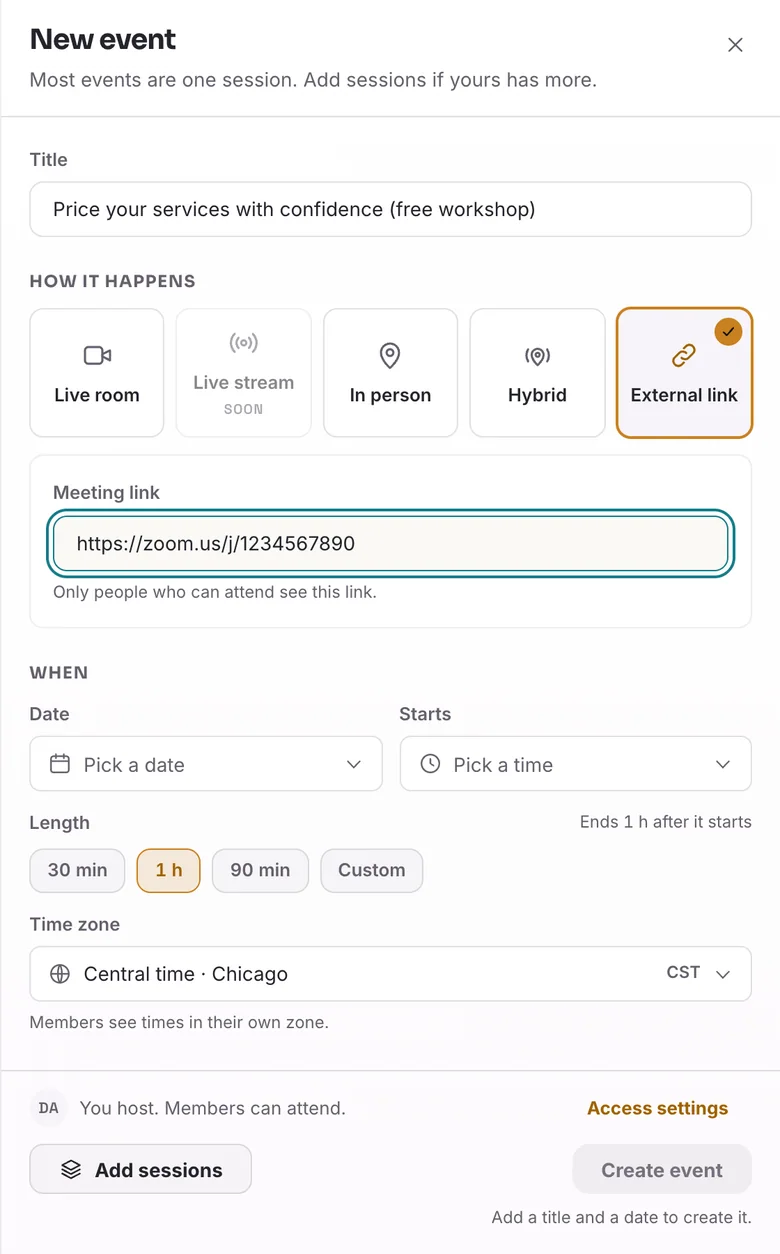
External link works on every plan, and only registered attendees see the meeting link. Set the date, length, and cover
Choose Date, Starts, a Length (30 min, 1 h, 90 min, or Custom), and your Time zone. Visitors automatically see their own local time. Under Cover (optional), upload a 16:9 image or pick one of the built-in patterns.
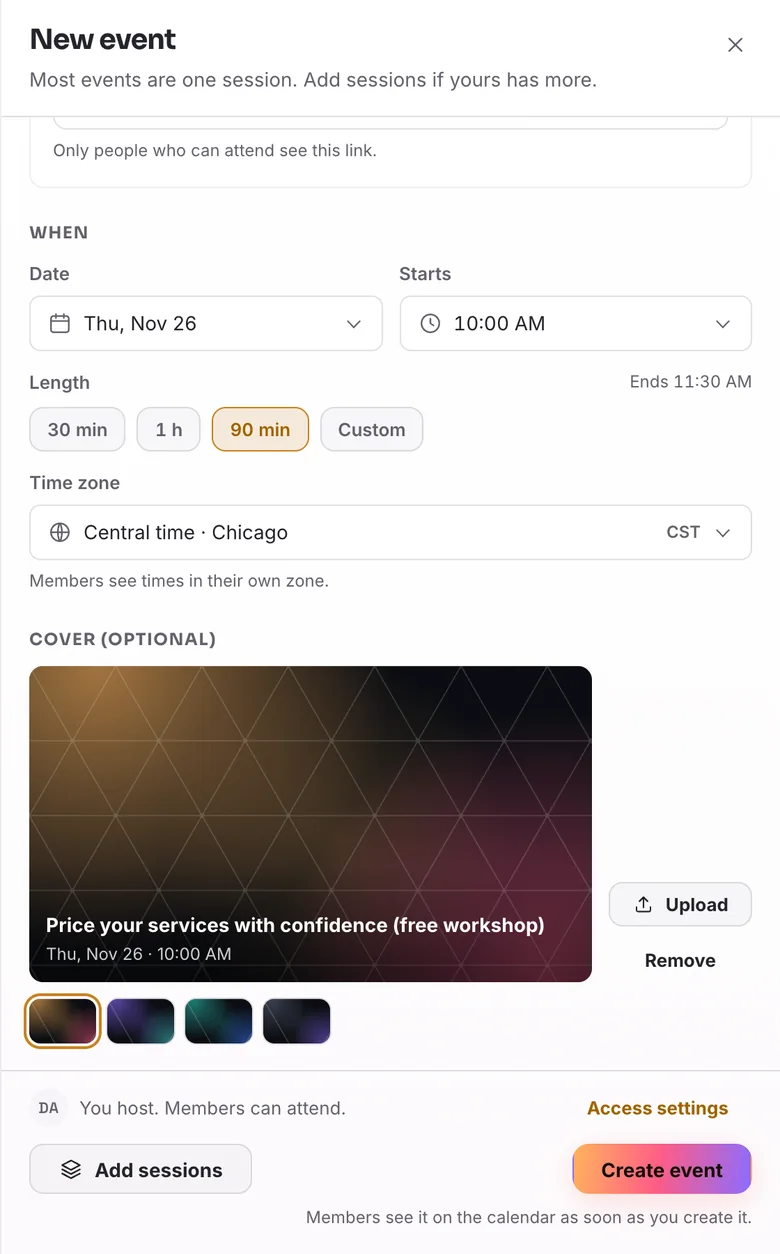
Pick 90 min, verify your time zone, and add a cover image or pattern. Set access and page visibility
Open Access settings. For a free workshop open to non-members, choose Members, plus guests who register free. Guests register with a free Lockers account and stay outside your private community feed and chat. Then pick Anyone with the link (to share manually) or Listed publicly (to display it on your About page).
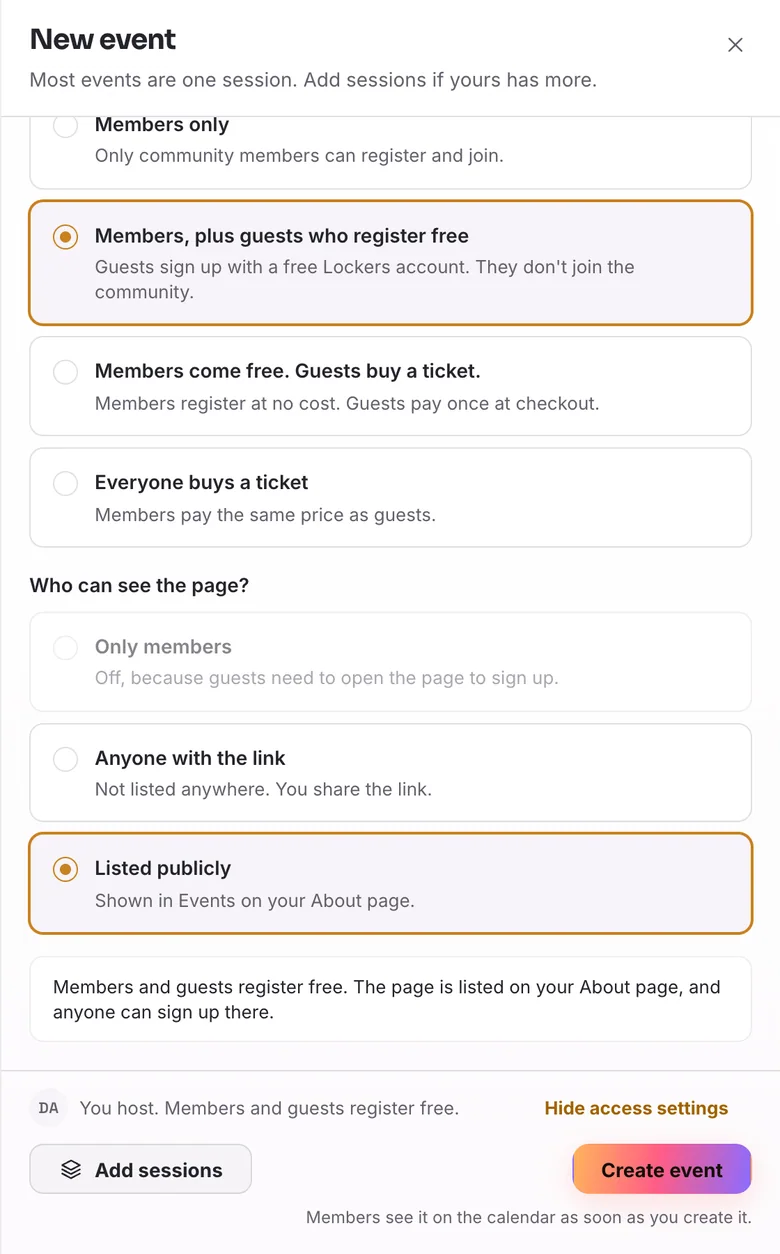
The summary bar confirms who can register and where the event page appears. Create the event and add your details
Click Create event. It publishes immediately and alerts active members. Select Edit on the event page to add your full description in the Details step. See event visibility and guest registration for every option.
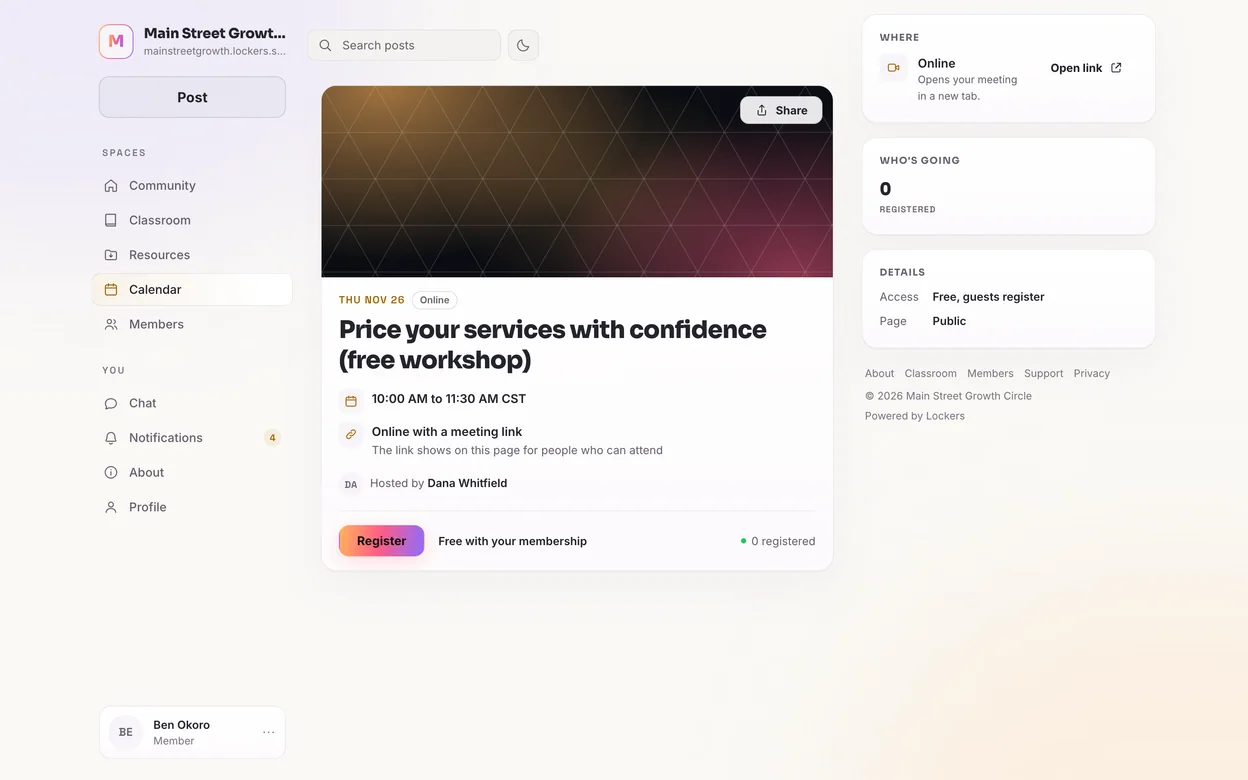
Members see a one-click Register button; guests see Sign in to register.
Run your first workshop free, or sell tickets from $7/mo
If people haven't watched you teach yet, a free first workshop lowers the barrier and fills your event's People tab with real names and emails. Don't worry about free signups flaking dramatically more than buyers. PheedLoop's Event Data Lab (April and September 2026 reports across 1,070+ events) found that within the same event, paid attendees showed up only 2 to 4 percentage points more reliably than free ones. Charging a fee alone won't fix attendance.
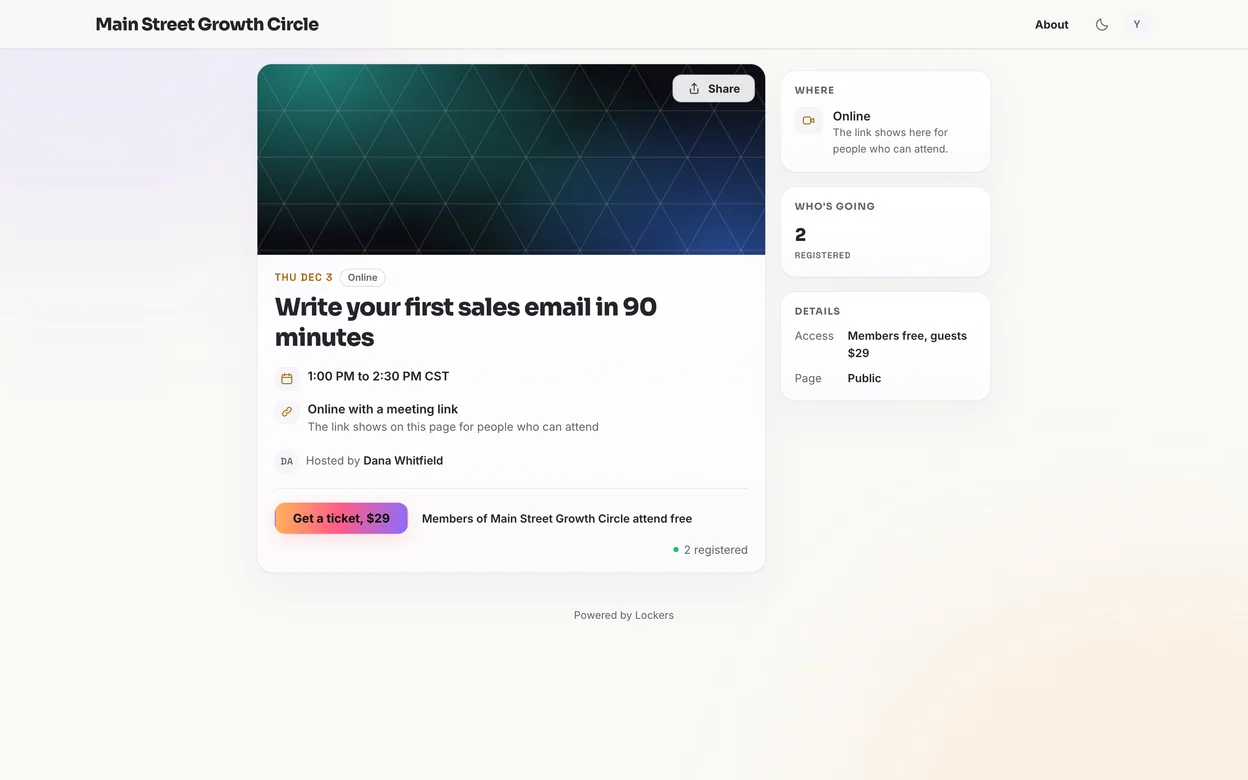
Run session one free on any plan, then charge for the next one. Talkspresso's 2026 workshop pricing guide suggests $29 to $49 for a 60-to-90-minute session, and Lockers supports any ticket price from $1 to $10,000 (one ticket covers the entire event).
| Plan | Plan price | Lockers fee on $29 | Stripe on $29 | You keep per ticket |
|---|---|---|---|---|
| Free | $0 | Free events only | None | Free registration |
| Basic | $7/mo | $1.45 (5%) | $1.14 | $26.41 |
| Pro | $67/mo | $0.29 (1%) | $1.14 | $27.57 |
Upgrade to Basic ($7/mo or $70/yr) or Pro ($67/mo or $670/yr) under Admin > Settings > Locker subscription, and link Stripe under Admin > Sales > Payments > Connect Stripe until it reads Ready to receive payments.
In the event's Access settings, pick Members come free. Guests buy a ticket. (or Everyone buys a ticket in a free-to-join Locker if members pay too).
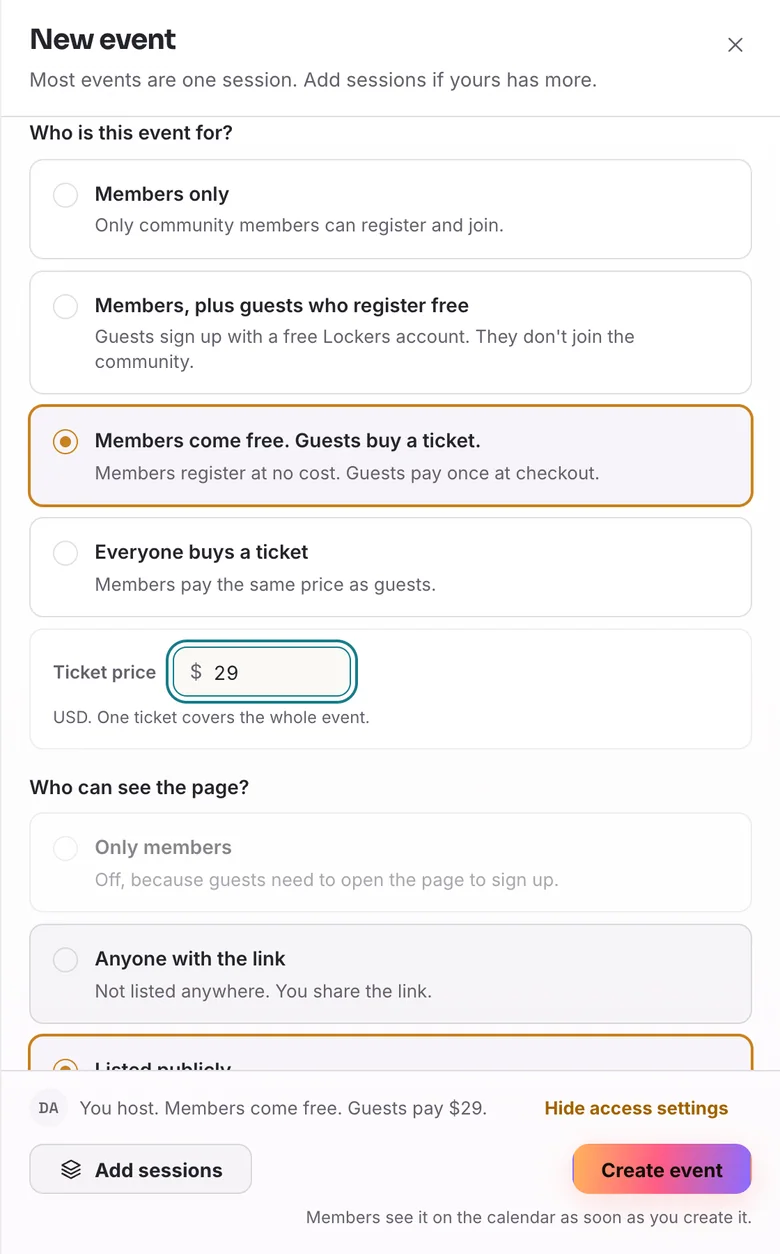
Choose who pays, type the ticket price, and confirm the summary line below. Enter your Ticket price in USD and click Create event. For deeper pricing advice, see selling tickets to an online workshop.
Here's what you keep on a $29 ticket after the Lockers fee (5% on Basic, 1% on Pro) and Stripe's standard US card fee of 2.9% + 30 cents (November 2026):
At 20 tickets, Basic leaves $528.20 before its $7 plan price and Pro leaves $551.40 before its $67 price. Basic is the clear winner for ticketed workshops until you want the Live room or paid memberships. Issue refunds anytime under Admin > Sales > Payments > Orders and refunds.
Let automatic reminders protect your show-up rate
Because live attendance reliably hovers around 40% to 50%, plan to register roughly twice the people you want in the room and remind them on schedule. Mailchimp's event reminder guide recommends touching base one week, 24 hours, and one hour before start time.
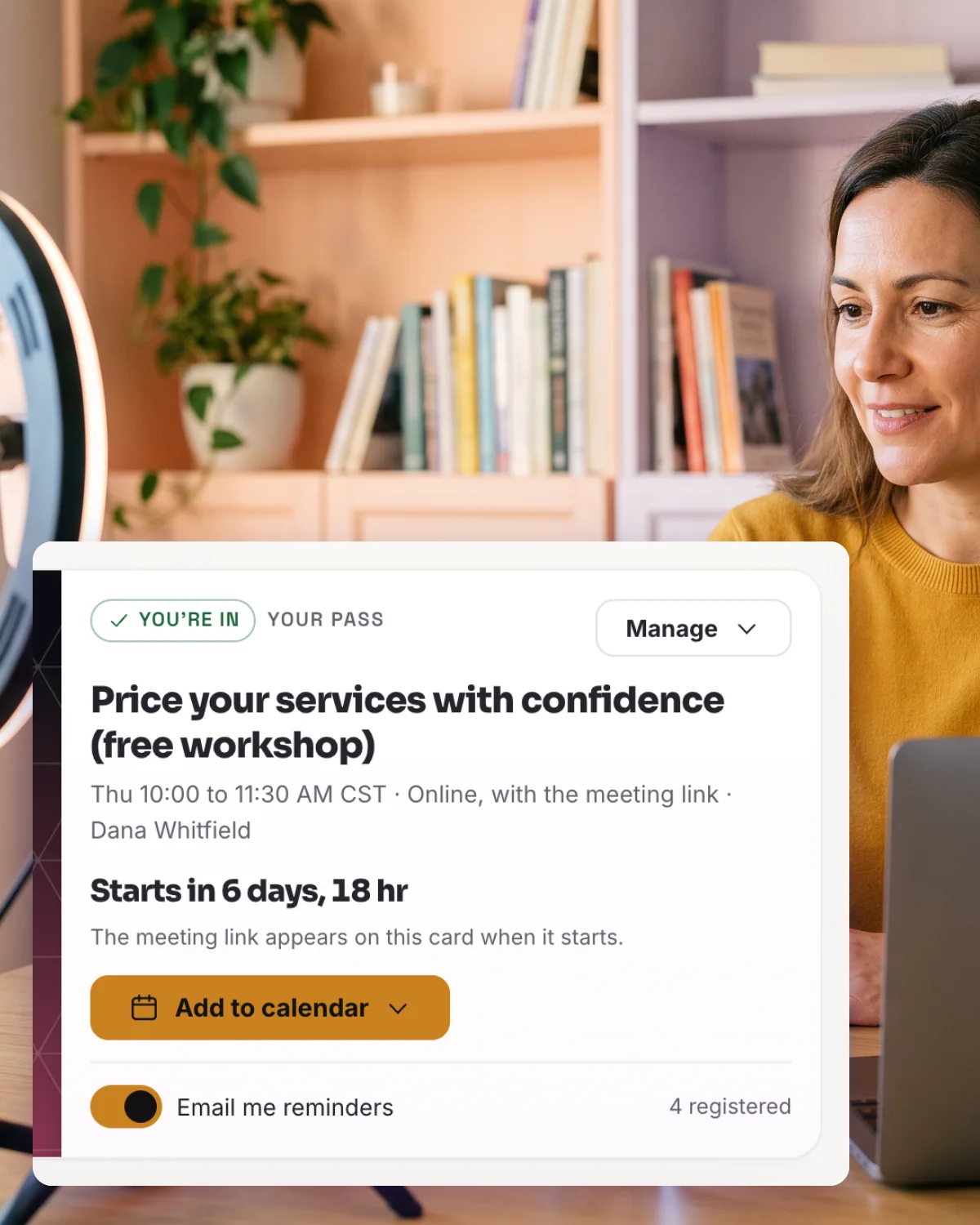
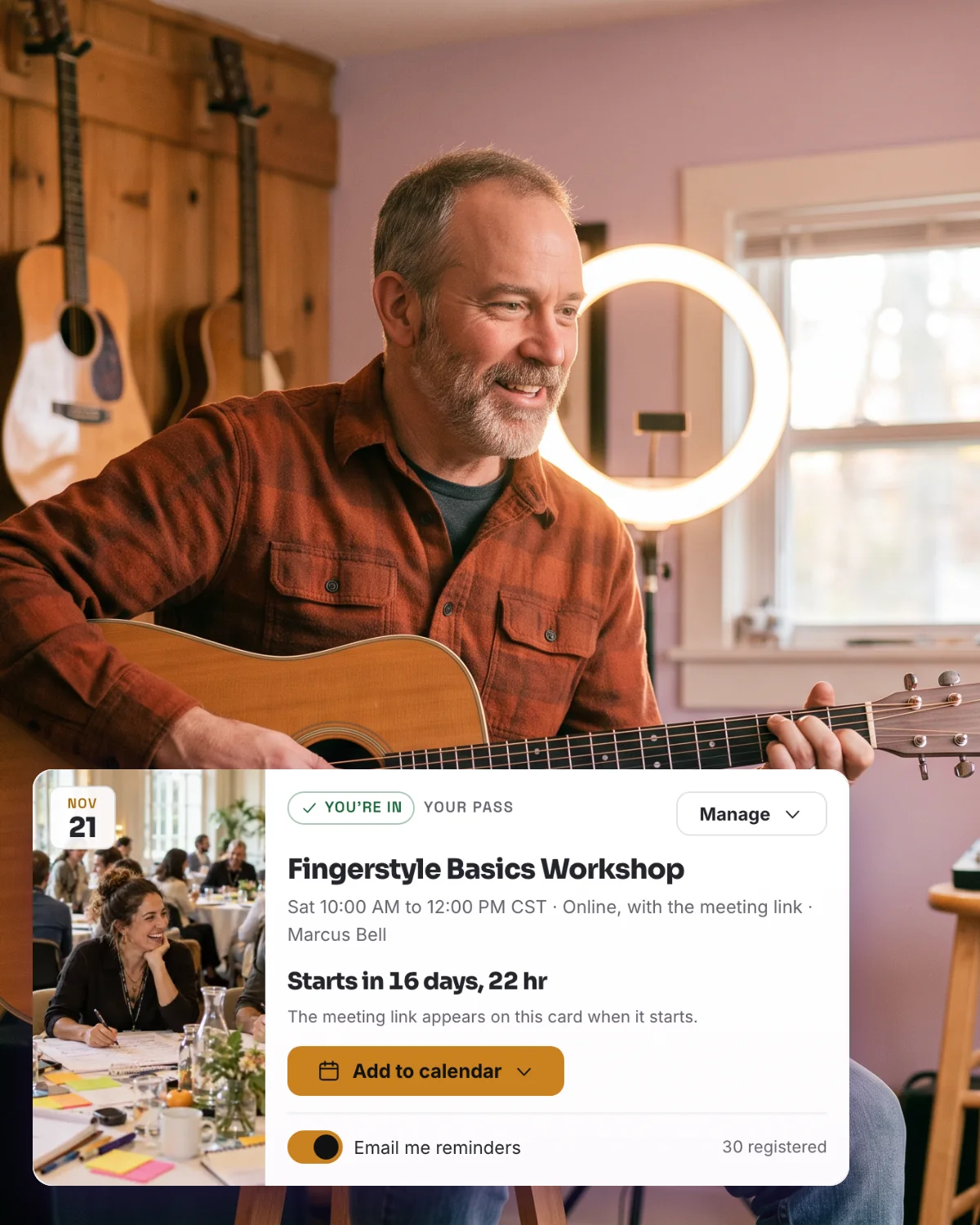
Lockers handles two of those automatically on every plan, emailing registrants the day before and 15 minutes before start time (unless they toggle Email me reminders off). Once someone registers, the top of the event page becomes their pass, complete with a countdown and Add to calendar.
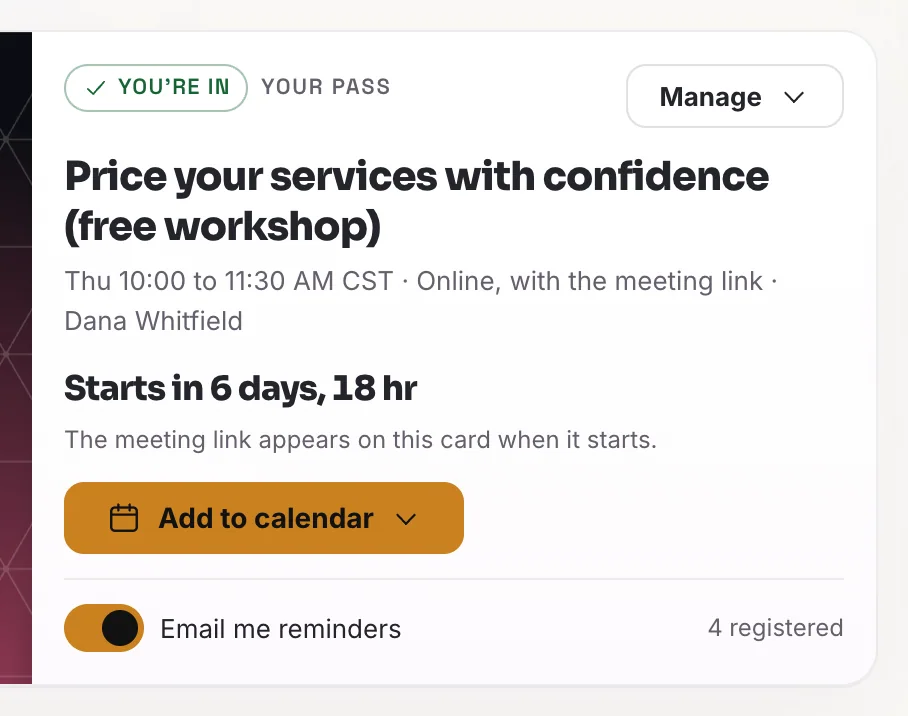
Open the event's People tab to see everyone registered (and, afterward, who attended).
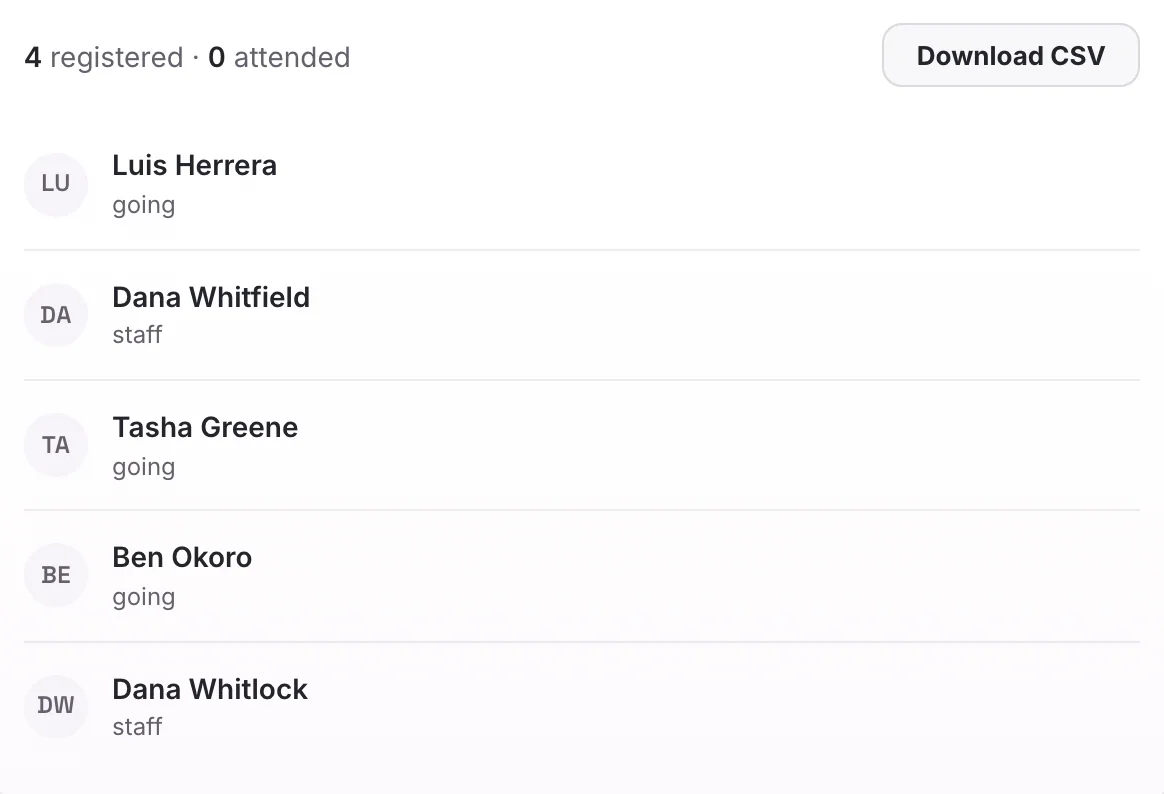
Download CSV gives you every registrant's name and email for your own prep note. Click Download CSV to export names and emails.
Send a short one-week prep note with the outcome, date, event link, and your worksheet attached. Hang onto that CSV if anything changes: Lockers doesn't notify registrants when you edit or cancel an event, and Add to calendar downloads a static file. See event reminders for email settings.
Fill the room starting with people who know you
A great first workshop only needs 10 to 25 people in the room. At a 40% to 50% show-up rate, that's 25 to 50 registrations, small enough to fill without a big social following. Start by personally messaging clients, past students, colleagues, and newsletter readers. A direct note naming the date and the outcome beats a broadcast post every time.
Don't panic if signups start slow. Livestorm's 2026 webinar report found that 49.7% of registrations arrive in the final seven days and 15% come on the day itself. Tuesday posted the highest attendance (51.7%), with Monday through Wednesday at 11:00 AM or 2:00 PM Eastern performing best. Announce two to three weeks out, then put your real promotional push into the final week.
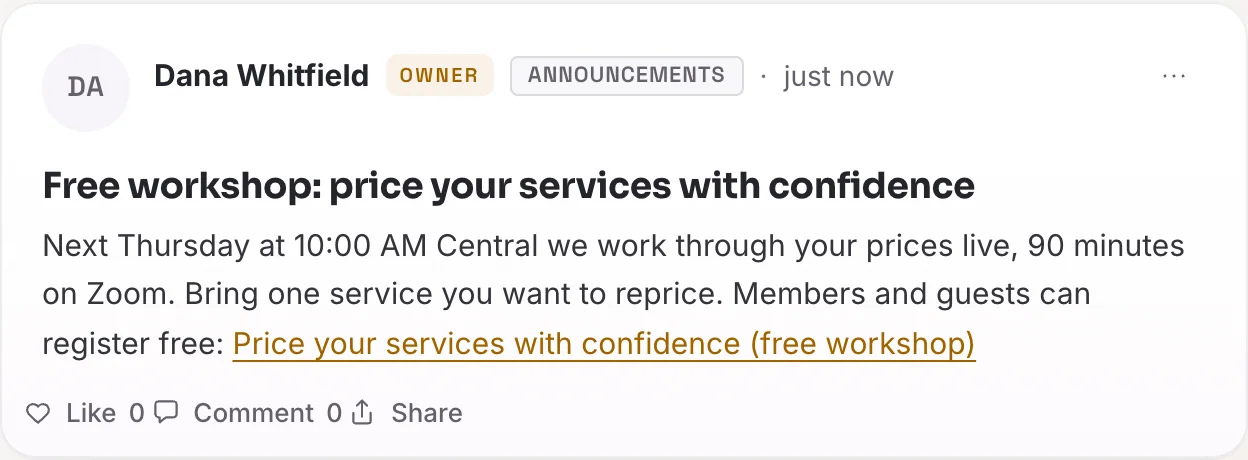
Inside your Locker, add an Announcements tab under Admin > Community > Categories, post the workshop with a link to the event page, and switch on Send email to all members. Use the Share button on the event page to copy the link for email and social.
Run the session in a Live room or meeting link
On Free or Basic, your External link appears right on each attendee's pass at start time, and you host in Zoom or Google Meet. On Pro ($67/mo), you can run the whole thing inside a Lockers Live room right in the browser with zero downloads. Pro includes 200 attendee-hours a month in rooms of up to 100 people (see Live limits for how hours count).
Select Live room when creating the event
Under How it happens, pick Live room and leave Record switched on so the replay posts automatically afterward.
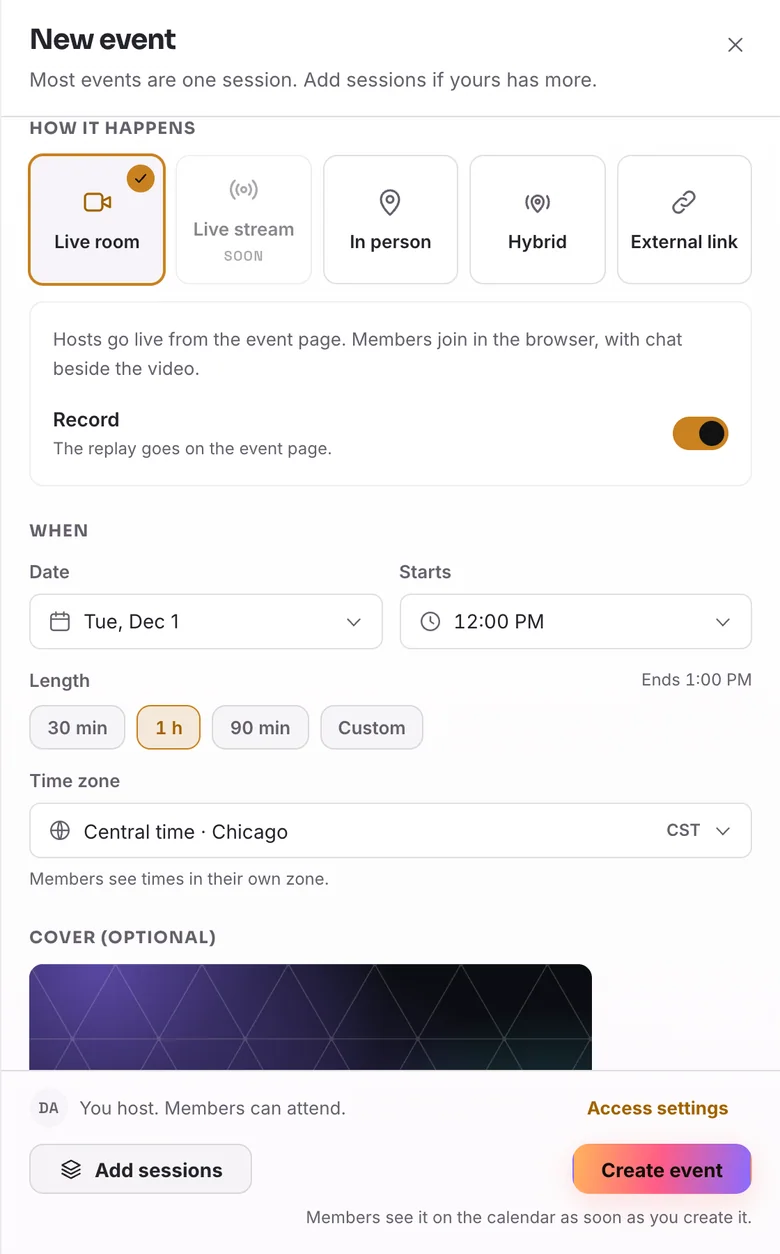
Live room is on Pro, with Record turned on by default. Recruit a co-host
The WordPress Training Team's workshop handbook recommends having a co-host monitor chat and check in 10 to 15 minutes early. Any admin or moderator can remove spam and pull questions for your Q&A block. To put a co-host on camera (up to six hosts, all community members), open Edit > Schedule on the event page, select the session, and use Add a host from members under Hosts.
Click Go live
Fifteen minutes before start time, the join card opens at the top of the event page. Select Go live. Registered members get a Live now alert in Lockers, and every attendee (including guests) sees a Join button. Lockers doesn't email when you go live, so remind guests to open the event page at start time. See hosting a Live session for room controls.
Coach through the chat
In a Live room, attendees watch without cameras or mics and type in Say something. Open with a quick icebreaker, announce the recording, and ask people to paste their work into chat during the Do block so you can coach live.
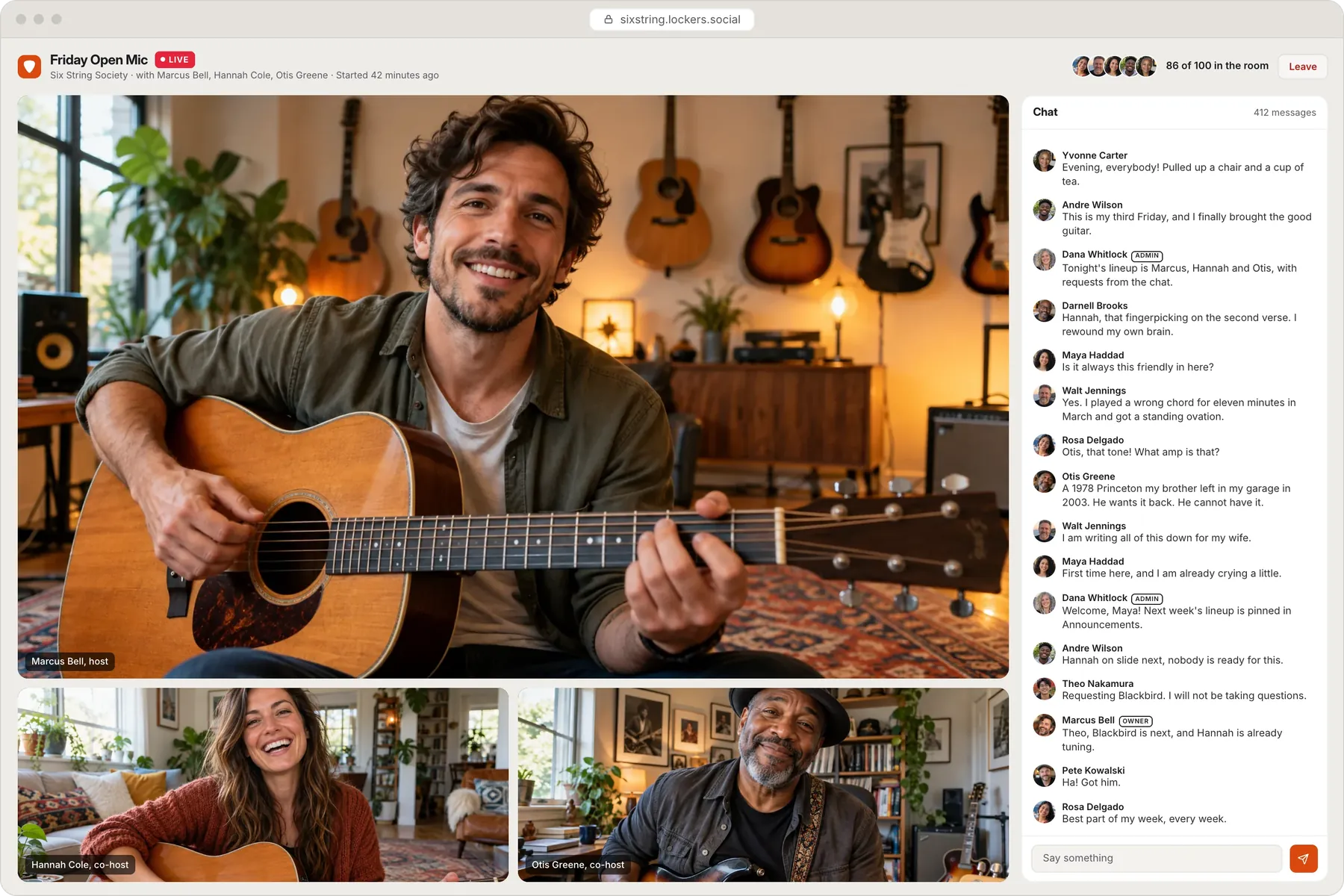
Hosts teach on camera while attendees share drafts and questions in chat. End the session and keep the replay
Click End session when you wrap up, then select Keep replay (or Discard). Keeping it makes the video available to every registrant.
Give everyone a replay that keeps working
Half your registrants will miss the live hour, and they're still warm leads. Wistia's 2026 benchmarks found that a third of webinars were still drawing views three months after the live date.
On Pro, a kept Live recording appears on the session's feed post and on the event page's Replays tab once it shows Replay ready. Every registrant and ticket holder can watch it, and replays consume zero attendee-hours. See recording and replay for processing statuses.
If you host via Zoom or Google Meet, record the call there, then upload the video to your feed with Upload a video on Basic or Pro and send guests your community invite link so they can join and watch. On Free, share the replay directly through your meeting tool.
Follow up within 24 hours with a worksheet, chat, and next step
Writing your follow-up the morning after feels like a chore, so draft it before the workshop even begins. Drop in the replay link afterward and email everyone on your People tab CSV within 24 hours with one small assignment for the week.
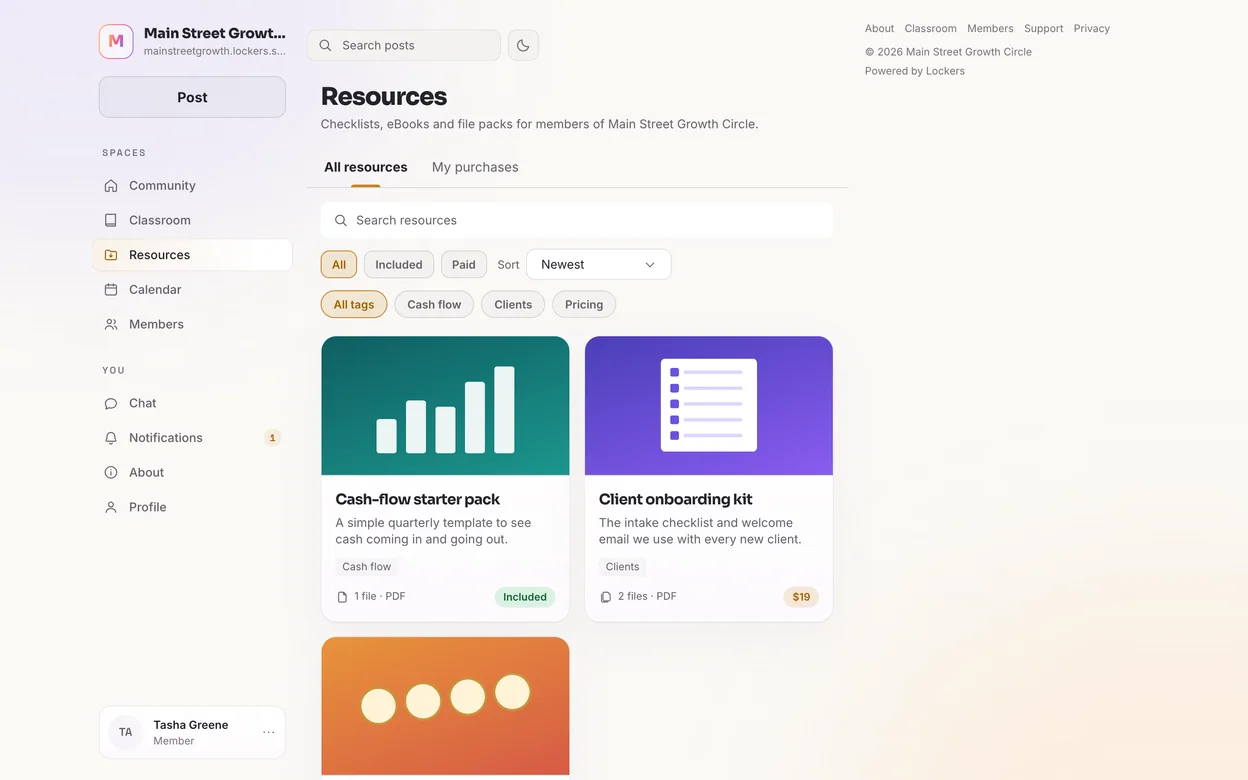
Upload the workshop worksheet under Resources > New resource (owner only, up to ten files of 16 MB each) and set access to Included. Because downloads require active membership, include your community invite link (Admin > Settings > General) so guests join to grab the file.
Give attendees who want accountability a small private group chat (up to 50 people; staff start groups and invitees accept) and mention it in your thank-you email since chat doesn't send email notifications. Then pitch your natural next step in the final ten minutes of the call and again in your follow-up. Someone who just finished your workshop exercise can see the next gap clearly, whether that's a full course ($1 to $10,000 on Basic or Pro) or an ongoing paid membership on Pro. Course buyers must be members, giving you one more clean reason to invite attendees into your community. See how to create an online course when you're ready to build it.
Host your next workshop in the same home
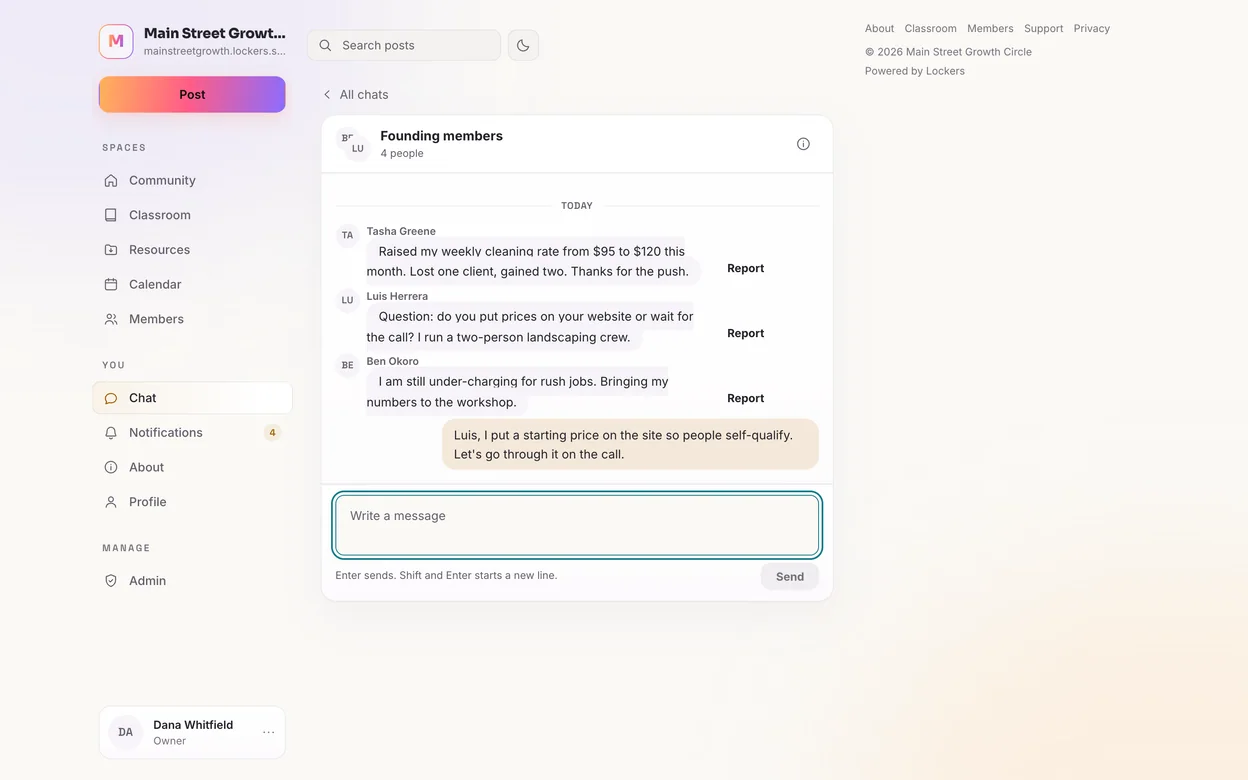
Standalone call links and signup forms force you to rebuild your audience from zero every single time. Inside a community, people who showed up for one evening stay for the replay, the worksheet, and the next session. Better yet, every new event you post automatically alerts active members. Lockers doesn't support recurring events, so create each workshop as its own event.
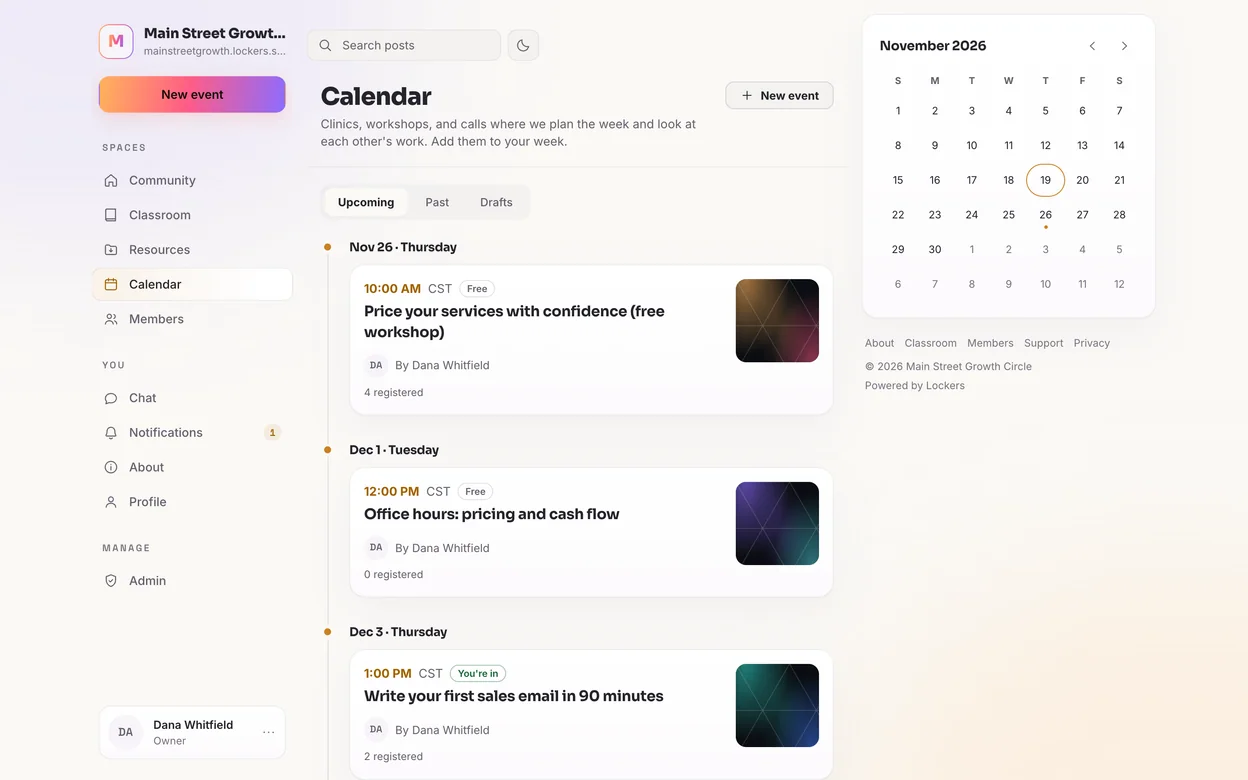
Open a free Locker at lockers.social/start ($0, no card), open Calendar > New event, and put your first 90-minute workshop on the books with a Zoom or Meet link. When you're ready for paid tickets or Live rooms, compare plans on the pricing page or explore the events features page.
Related guides
How to sell tickets to an online workshop, step by step
Sell tickets to an online workshop from an event page that takes payment through Stripe and emails reminders to buyers. Ticket sales on Lockers start at $7 a month on Basic.6 min read
How to create an event and choose who can see it
Use the New event sheet to add a one-session event or start a multi-session draft on Pro, and choose who can attend and who can open the page.5 min read