How to host a virtual book launch with free registration and reminder emails
When the novelist Jessica Stilling moved a launch online, about 25 people came, nearly twice the 12 to 15 she usually saw at an in-person launch. Three of them bought the book that day. She wrote about it in The Writer, and her advice was to give readers a reason to come back, such as a read-along about two weeks later.
 By Ryan Scott, founder of LockersUpdated November 20, 20265 min read
Set the date three weeks ahead and plan a 60-minute program
Many of the readers who told her they would buy later never did. So give the launch one goal: collect the email address of every reader who wants to come, because that list lets you bring them to the live hour and follow up with all of them afterward.
Dele Ola, who wrote up his 2021 virtual launch for FriesenPress, posted his invitations about three weeks before the event, held it on a Saturday at 1 p.m. Central and had about 90 people attend. Three weeks gives readers time to plan around it and gives you time to send more than one invitation.
A 60-minute launch can run in this order:
A welcome and the story behind the book, five minutes.
A short reading, ten minutes.
A conversation with a co-host who asks you prepared questions, twenty minutes. The novelist Carol Newman Cronin, writing for Jane Friedman's site, used a co-host with ten questions and a separate moderator who handled the chat.
Reader questions, fifteen minutes.
Where to buy the book and what happens next, ten minutes, with the buy link posted in the chat.
Open free registration on Lockers
A Lockers event gives your launch a page where readers register with a free Lockers account under their email address, and Lockers sends them reminders. Every step here works on the Free plan. You need an authenticator app on your Lockers account before you create an event.
Create your Locker at lockers.social/start, or open the one you already run.
On Calendar, select New event and enter the title, such as the book's name and "Launch."
Under How it happens, choose External link and paste the meeting link from Zoom, Google Meet or the tool you use. The link appears on the event page only for people who can attend: your members and every reader who registers.
Under When, set the date, start time, length and time zone. Each reader sees the time in their own time zone.
Add a cover image, such as your book cover.
Select Access settings. Under Who is this event for?, choose Members, plus guests who register free. Under Who can see the page?, choose Listed publicly, so the launch also appears in Events on your community's About page, or Anyone with the link.
Select Create event. Then edit the event and add a Description that names your co-host and gives the full web address of the book's store page, since the event page shows the description as plain text.
A reader who opens the page selects Sign in to register, creates a free Lockers account with their email, confirms it with a code and selects Register. They do not join your community, and the page tells them so.
Fill the list in the three weeks before
Share the event page everywhere your readers already find you: your newsletter, your social profiles, your publisher's and bookstore partner's channels, and personal messages to readers who have written to you. Ola's numbers give a sense of the ratio: about one in five people who visited his registration page signed up, and about four in five of those attended.
Plan for fewer people live than registered. Wistia's analysis of webinars on its platform in 2025 found that about 40% of registrants attended live, and Goldcast's 2025 benchmark report put the average at 33% across 19,531 webinars. If you want 50 readers live, aim for well over 100 registrations.
Let Lockers send the reminders
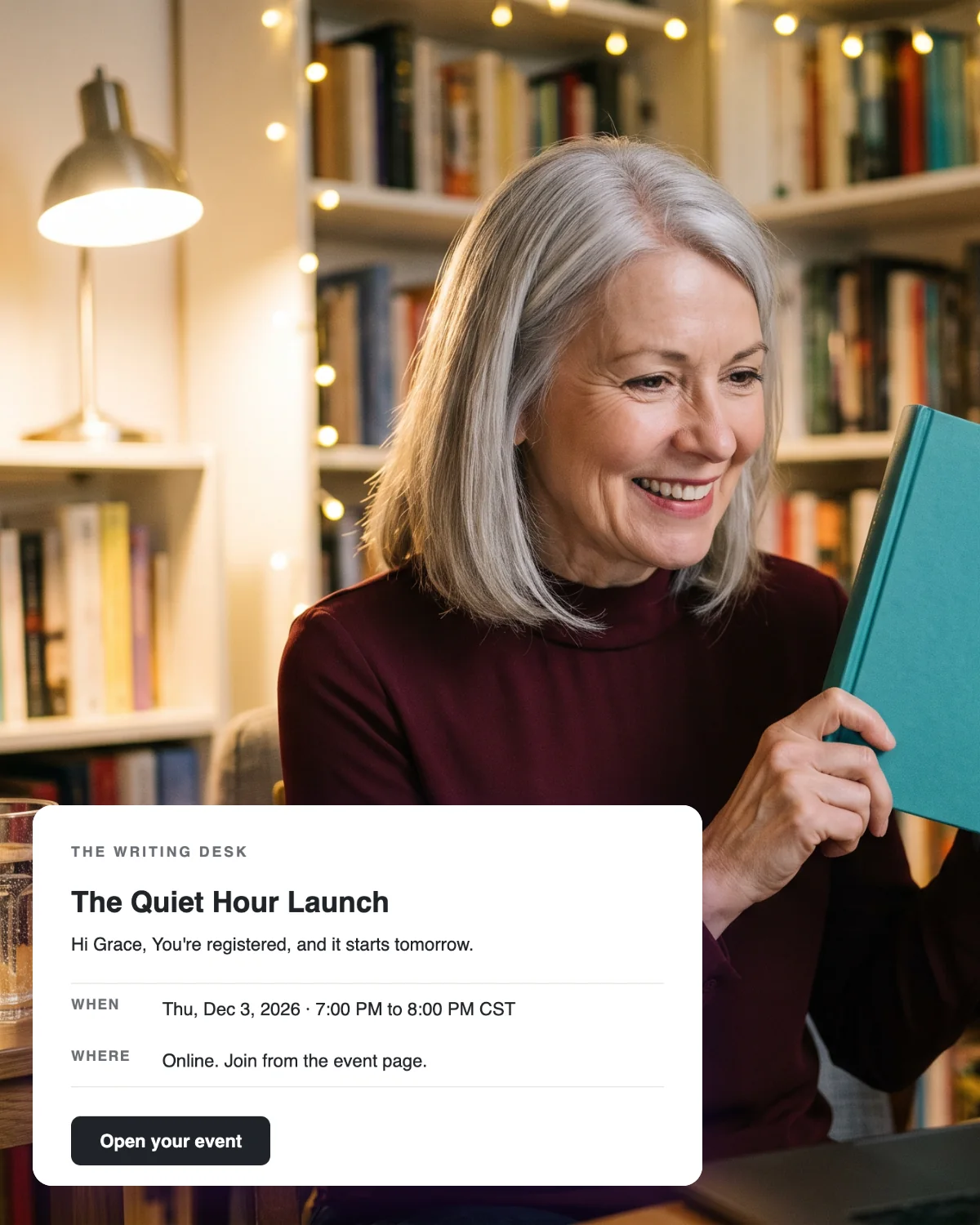
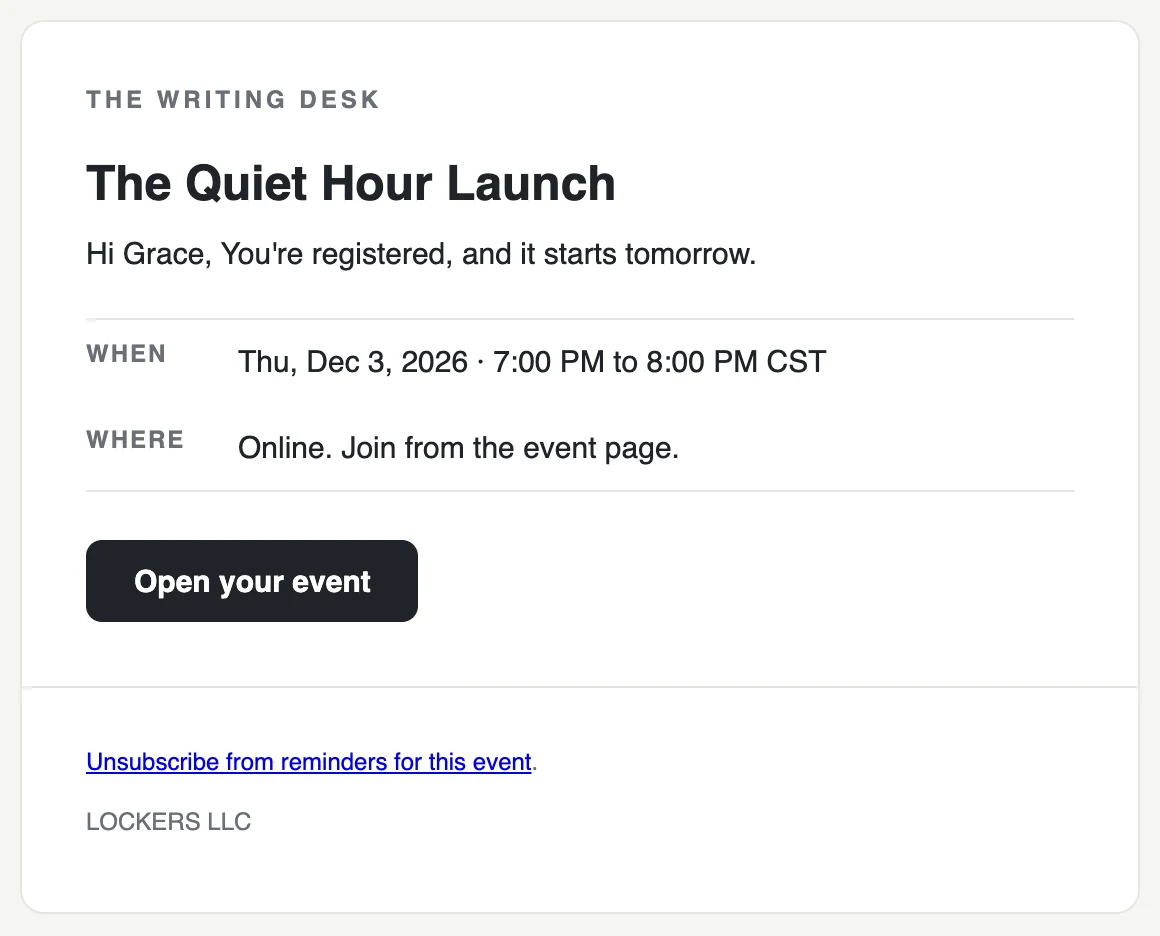
Lockers emails each person who registers about a day before the launch and again 15 minutes before it starts. Each email has an Open your event button that takes the reader back to the event page, where the meeting link appears. A reader who would rather not get reminders can turn them off for this event from the email, and they stay registered.
The morning of the launch, download the list from the event's People tab and send one more message of your own, with something new to look forward to, such as the question your co-host will open with or the prize you will give away. Ola gave away four $20 Amazon gift cards as door prizes during his launch.
Follow up with every reader within two days
After the event, open the event page, select the People tab and select Download CSV. The file lists the name and email of each registered reader, up to the first 500.
Within two days, send each person a thank-you with the recording, the buy link and the date of your read-along. Stilling's suggestion of a read-along two weeks after the launch gives readers who did not buy that evening a date to come back for. Create that read-along as a second free event in your Locker, and invite the people from your launch list to join your community, where you can post a reading schedule, discussion questions and news about your next book. In Admin, under People, then Invitations, create an invitation for each email address and copy its accept link when it appears, because Lockers shows it once, then send it in your own message. To reach everyone at once, copy the Invite link from Admin, under Settings, then General, and share it with your launch list.
Host the launch in your Locker on Pro
On Pro, at $67 a month, you can choose the Live room as the event format and host the launch inside your Locker instead of a separate meeting tool. Readers watch and listen and send their questions in the Say something chat. To put your co-host on camera, build the launch in the Pro schedule builder and add them under Hosts, where you can choose up to six people from your Locker's members. The Live room holds up to 100 people at once, and Pro includes 200 attendee-hours of Live each month. In the schedule builder, switch on Record new sessions on the Settings step before you add the session, so the launch records. After the session, select Keep replay. Once it finishes processing, the replay appears in the event's Replays area, where every reader who registered can watch it. The People tab then shows who joined the live session as well as who registered.
Your launch page works on the Free plan at $0. Create your Locker at lockers.social/start, and once your authenticator app is set up, select New event on Calendar to open registration for your launch.
Related guides

How to create an event and choose who can see it
Use the New event sheet to add a one-session event or start a multi-session draft on Pro, and choose who can attend and who can open the page.5 min read
How to let guests register free for an event
Open a free event to people outside your community. Guests register with a free Lockers account and get access to that event only.4 min read